
Technical SEO Audit Checklist: Is Your Website Google-Ready?
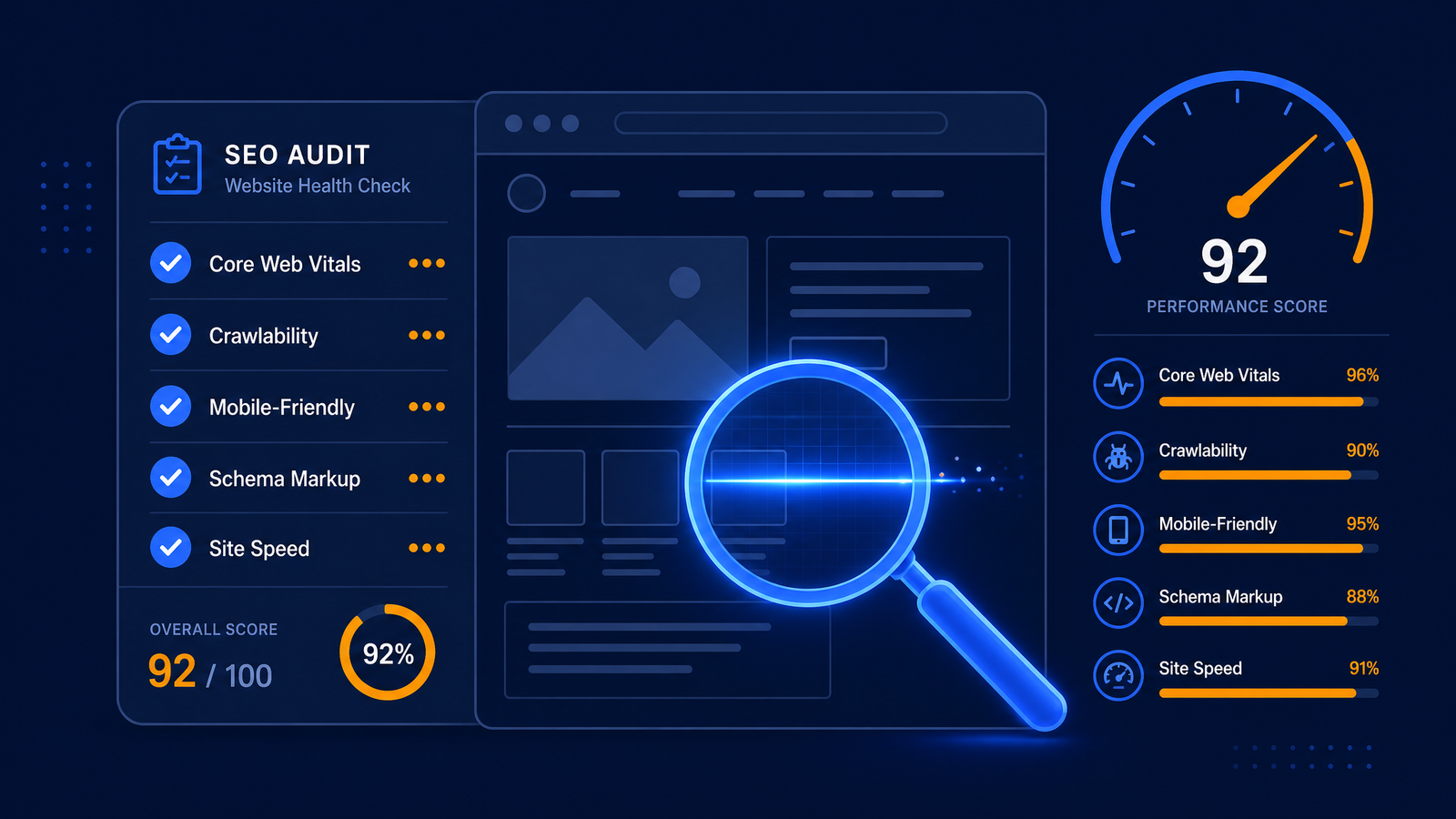
Run a complete technical SEO audit with this checklist. Cover Core Web Vitals, site speed, crawlability, structured data, and more. Fix issues that hold your rankings back.
VidyaSaaS Team
Super Administrator
Introduction
Let me tell you about a client we worked with last year. They had a well-designed ecommerce website selling handcrafted furniture. Beautiful product photos. Detailed descriptions. Good prices. But their conversion rate was stuck at 0.8%, and their traffic hadn't grown in months.
Their Google Search Console was screaming at them — 2,143 pages flagged for "not indexed" — but nobody was looking at it. Their site loaded in 5.8 seconds on mobile. Their sitemap hadn't been updated since 2021. They had 47 broken internal links. And their structured data? It didn't exist.
Here's the kicker: none of these issues were visible on the front end. The website looked fine to a human. But to Google's crawlers, it looked like a mess. And Google rewards websites that are easy to crawl, fast to load, and technically sound. For a deeper dive, see technical SEO checklist.
This is what technical SEO is about. It's the behind-the-scenes work that makes sure Google can find, understand, and rank your content. If your technical SEO is broken, all the great content and backlinks in the world won't save you.
This guide walks through every major aspect of a technical SEO audit in a practical, actionable way. You can use it as your personal checklist.
What Is Technical SEO?
Technical SEO refers to the optimization of your website's infrastructure — the things that affect how search engines crawl, index, and render your pages. It's separate from on-page SEO (content, keywords, meta tags) and off-page SEO (backlinks, social signals). For a deeper dive, see why your website needs to be mobile-friendly: google mo.
Think of it this way: if your website is a house, technical SEO is the foundation, plumbing, and electrical wiring. You don't see it when everything works, but when it fails, the whole house falls apart.
Technical SEO covers:
- How easily Google can find and crawl your pages
- How quickly your pages load
- How well your site works on mobile devices
- Whether your site is secure
- How you tell Google which pages are important and which are not
- Whether your data is structured in a way Google understands
A technical SEO audit is a thorough check of all these elements. Let's go through each one.
1. Crawlability: Can Google Find Your Pages?
Before Google can rank your page, it needs to find it. Google uses automated bots called crawlers (or spiders) that follow links from one page to another, discovering content along the way.
Robots.txt
Your robots.txt file tells Google which parts of your site it can and cannot crawl. It's a simple text file located at yourdomain.com/robots.txt.
Check if yours is blocking important pages by mistake. Common errors:
- Disallowing your entire site (User-agent: * Disallow: /)
- Accidentally blocking CSS or JavaScript files (this prevents Google from seeing your rendered page properly)
- Blocking sections that should be crawled (like blog archives or category pages)
XML Sitemap
An XML sitemap is a file that lists every important page on your website, organized by priority and last updated date. It's like a map Google uses to navigate your site.
Check:
- Does your sitemap exist at yourdomain.com/sitemap.xml?
- Is it updated automatically when you publish new pages?
- Have you submitted it to Google Search Console?
- Does it contain only canonical, indexable URLs? (No pagination parameters, no filtered URLs)
- Is it under the 50,000 URL limit per sitemap?
Site Architecture
Your site structure — how pages link to each other — affects both user experience and crawl efficiency. The ideal structure is flat: any page should be reachable within 3-4 clicks from the homepage.
Check:
- Does your navigation cover all major sections?
- Are your most important pages linked from the homepage?
- Do you have orphan pages (pages with no internal links pointing to them)?
- Is your site architecture logical and hierarchical?
2. Indexability: Is Google Storing Your Pages?
Even if Google can crawl your pages, it may choose not to index them. Indexing means Google stores your page in its database and considers it for rankings.
Check Index Status in Google Search Console
Google Search Console > Pages shows you every page Google has tried to index and its status.
Watch for:
- Crawled - currently not indexed: Google found the page but decided not to index it. Usually a quality issue — thin content, duplicate content, or low value.
- Discovered - currently not indexed: Google knows the page exists but hasn't crawled it yet. This is common for large sites — you may need to improve internal linking to these pages.
- Excluded by 'noindex' tag: You intentionally told Google not to index this page, or someone accidentally added the tag.
- Blocked by robots.txt: Google couldn't crawl the page because your robots.txt blocked it.
- 404 (not found): The page doesn't exist but Google found a link to it. Set up a redirect.
- Soft 404: The page loads but shows a "not found" message or thin content to users. Google treats these as errors.
The "Noindex" Tag
The meta robots "noindex" tag tells Google to not include a page in search results. It's useful for admin pages, thank-you pages, and duplicate content. But if your important product or service pages have a noindex tag by mistake, they'll never appear in search.
Check: Do any of your important pages have a noindex tag? If so, remove it.
Canonical Tags
Canonical tags tell Google which version of a page is the "master" version when multiple URLs show the same content. For example, your product page might be accessible at:
- yourdomain.com/product/red-shoes
- yourdomain.com/product/red-shoes?color=red
- yourdomain.com/product/red-shoes?utm_source=facebook
Without a canonical tag pointing to the master URL, Google may see these as three separate pages with duplicate content.
Check:
- Does every page have a self-referencing canonical tag (or point to the correct master page)?
- Are your canonical tags pointing to live, indexable URLs?
- For ecommerce sites, does your canonical tag strip out URL parameters like sorting, filtering, and tracking?
3. Core Web Vitals: The Speed and Experience Metrics
Core Web Vitals are a set of metrics Google uses to measure user experience on your website. They became official ranking factors in 2022 and remain critical in 2026.
Largest Contentful Paint (LCP)
LCP measures how long it takes for the largest visible element on your page to load. This is usually an image, a video, or a large text block.
Target: Under 2.5 seconds How to fix:
- Compress and resize images (use WebP format, aim for under 100KB per image for most use cases)
- Use a CDN (content delivery network)
- Remove render-blocking resources (JavaScript and CSS that load before the main content)
- Upgrade your hosting — shared hosting is often the bottleneck for LCP
First Input Delay (FID) / Interaction to Next Paint (INP)
FID measures the time between when a user first interacts with your page (clicking a button, tapping a link) and when the browser responds. Google is shifting to INP, which measures all interactions, not just the first one.
Target: Under 100ms for INP How to fix:
- Reduce JavaScript execution time (split large JS bundles, lazy-load non-critical scripts)
- Remove unnecessary third-party scripts (analytics, chat widgets, tracking pixels — they all affect interaction)
- Use browser caching for scripts
Cumulative Layout Shift (CLS)
CLS measures visual stability — how much your page layout shifts while loading. You know that frustration when you're about to click a link and an ad loads, pushing everything down? That's poor CLS.
Target: Under 0.1 How to fix:
- Set explicit width and height attributes on images and videos
- Reserve space for ads and embeds
- Avoid injecting dynamic content above existing content
- Use proper font-display settings
How to Check Core Web Vitals
- Google PageSpeed Insights: Enter any URL and get a detailed report with specific recommendations
- Google Search Console > Core Web Vitals: See which pages on your site are struggling
- Chrome DevTools > Lighthouse: Run on-demand audits during development
4. Mobile-Friendliness: The Mobile-First Reality
Over 70% of Google searches in India happen on mobile devices. Google has used mobile-first indexing since 2021, meaning it primarily uses the mobile version of your page for ranking and indexing.
Responsive Design
Your website must work well on all screen sizes — from a 6-inch smartphone to a 27-inch desktop monitor. Responsive design uses CSS media queries to adjust layout, font sizes, and navigation based on screen width.
Mobile Usability Issues
Google Search Console > Mobile Usability shows you pages with mobile-specific problems.
Common issues:
- Text too small to read: Base font size should be at least 16px
- Clickable elements too close: Buttons and links need at least 48px spacing
- Content wider than screen: Elements overflowing horizontally force users to pinch and scroll
- Viewport not configured: Your page must have a viewport meta tag
Mobile Page Speed
Mobile users are less patient than desktop users. A 2024 study showed that 53% of mobile users abandon a site that takes over 3 seconds to load. In India, where mobile data speeds vary dramatically, optimizing for mobile is non-negotiable.
Test your site on PageSpeed Insights using the "Mobile" tab. Don't aim for a perfect 100/100 — it's nearly impossible and often requires trade-offs that don't matter. Aim for 80+ on mobile.
5. HTTPS and Site Security
HTTPS (the secure version of HTTP) has been a ranking factor since 2014. Any site not using HTTPS in 2026 is severely disadvantaged.
Check:
- Does your site load over HTTPS by default?
- Does HTTP automatically redirect to HTTPS?
- Is your SSL certificate valid and not expired?
- Do all resources (images, scripts, fonts) load over HTTPS?
Mixed content — where your page loads over HTTPS but some resources load over HTTP — breaks the padlock icon and creates security warnings. Fix any mixed content issues immediately.
6. Structured Data (Schema Markup)
Structured data is code added to your website that helps Google understand your content in specific, structured ways. It enables rich results — enhanced search listings with star ratings, prices, FAQs, recipes, events, and more.
Types of Structured Data Relevant for Most Businesses
Organization schema: Tells Google your business name, logo, contact info, and social profiles. Local Business schema: Address, phone, hours, area served. Product schema: Name, price, availability, reviews, shipping info — critical for ecommerce. Article schema: Headline, author, publish date, image — for blogs and news. FAQ schema: Questions and answers that can appear directly in search results. Review schema: Star ratings from customer reviews. BreadcrumbList schema: Navigation path, helps Google understand site structure. Event schema: Date, location, ticket info — for event-based businesses.
How to Implement
- Use Google's Structured Data Markup Helper for a visual approach
- Test your schema with Google's Rich Results Test tool
- Most CMS platforms (WordPress, Shopify, Webflow) have plugins or built-in options for basic schema
Common Schema Mistakes
- Wrong type: Using LocalBusiness for an ecommerce-only brand with no physical location
- Missing required fields: Google requires certain fields within each schema type. Missing them means the rich result won't show.
- Wrong values: Incorrect pricing, wrong dates, mismatched information
- Content mismatch: Schema that doesn't match what's visible on the page (Google flags this as deceptive)
7. URL Structure
Clean, logical URLs help both users and Google understand what a page is about.
Best practices:
- Keep URLs short and descriptive: yourdomain.com/seo-services not yourdomain.com/blog/12345?cat=12
- Use hyphens, not underscores: seo-services not seo_services
- Avoid parameters and IDs where possible
- Use lowercase (some servers treat case-sensitivity differently)
- Keep hierarchy logical: yourdomain.com/category/subcategory/page
Check your URLs. If you have URLs like yourdomain.com/product?id=49382&ref=home&color=blue, it's time to restructure.
8. Redirects: The Careful Dance
When you move or delete pages, redirects tell Google (and users) where the content went. The most common is a 301 redirect, which signals permanent movement.
Common Redirect Issues
Redirect chains: Page A → Page B → Page C. Every redirect in the chain loses some link equity (authority). Keep redirects direct: Page A → Page C.
Redirect loops: Page A → Page B → Page A. Google can't resolve the path and drops the page from the index.
404 errors: Pages returning a 404 (not found) status code when they should 301 redirect. Using a tool like Screaming Frog or Ahrefs, crawl your site and fix every 404 that has external backlinks.
Soft 404s: A page that returns a 200 status code but shows a "page not found" or empty message. Google sees these as errors.
How to Audit Redirects
- Use Google Search Console > Pages for index coverage issues
- Use Screaming Frog SEO Spider (free version handles 500 URLs) to crawl your site
- Check your server logs if you can access them
- Fix any broken internal links that point to 404 pages
9. Duplicate Content
Duplicate content is content that appears on multiple URLs. It confuses Google about which version to show in search results.
Common Causes in 2025
- WWW vs non-WWW (yourdomain.com vs www.yourdomain.com)
- HTTP vs HTTPS (not redirecting properly)
- Trailing slash vs no trailing slash (yourdomain.com/page/ vs yourdomain.com/page)
- URL parameters (sorting, filtering, tracking)
- Page ID variations (product page accessible through multiple URLs)
- Printer-friendly versions of pages
- Session IDs in URLs
Fixing Duplicate Content
- Set a preferred domain in Google Search Console (www or non-www)
- Implement 301 redirects from duplicate URLs to the canonical version
- Use canonical tags consistently
- For ecommerce sites, use rel="canonical" to point parameter-based URLs to the clean version
- Use Google Search Console's URL Parameters tool to tell Google how to handle specific parameters
10. Image Optimization
Images are often the largest files on a webpage and the primary cause of slow load times.
Image Size and Format
- Use WebP format: 25-35% smaller than JPEG at the same quality. All modern browsers support it.
- Compress aggressively: Every image should be under 200KB for most purposes. Product images can go up to 300-500KB if needed.
- Serve responsive images: Use srcset attribute to serve different image sizes based on screen width.
Alt Text
Every image needs descriptive alt text. It helps Google understand the image content (Google can't "see" images) and provides accessibility for visually impaired users using screen readers.
Good alt text: "Blue ceramic vase on wooden dining table — handcrafted in Jaipur" Bad alt text: "blue-vase-1.jpg" or "image" or keyword-stuffed "buy blue ceramic vase jaipur handcrafted pottery india"
Lazy Loading
Use lazy loading for images that appear below the fold. This means the image only loads when the user scrolls close to it, saving bandwidth and speeding up initial load time. WordPress and most CMS platforms support native lazy loading with a simple attribute: loading="lazy".
11. JavaScript and Rendering
Google can render JavaScript, but it's not as good at it as modern browsers. Heavy JavaScript dependency can cause indexing issues.
Problems with JS-Heavy Sites
- Delayed content visibility: If your content relies on JavaScript to display, Google may see an empty page
- Resource limits: Google has a crawl budget and a rendering budget — complex JS uses both
- Broken functionality: If a required JS file fails to load, your entire page may break
How to Audit
- Use Google Search Console's URL Inspection Tool > View Crawled Page — this shows you what Google actually saw
- Use the "Fetch as Google" feature (available through Search Console) to request fresh crawls
- Test with JavaScript disabled in your browser — if your page looks broken without JS, you have a problem
Technical SEO Audit Tools
You don't need to do everything manually. These tools will handle most of the heavy lifting:
- Google Search Console: Free. Index coverage, mobile usability, Core Web Vitals, manual actions. Start here.
- Google PageSpeed Insights: Free. LCP, FID/INP, CLS scores with specific fixes.
- Screaming Frog SEO Spider: Free for up to 500 URLs. Crawls your site and identifies technical issues.
- Ahrefs / Semrush: Paid. Site audits, crawl reports, structured data checks, duplicate content detection.
- GTmetrix: Free option. Detailed performance analysis with waterfall charts.
- Schema.org Validator / Google Rich Results Test: Check your structured data.
- Broken Link Checker: Various free tools to find 404s.
📚 Related Articles You Might Like:
Conclusion
The ecommerce client I mentioned at the start — the one with the furniture website? We ran a full technical SEO audit. Fixed the crawl issues, compressed images, implemented structured data, cleaned up redirects, and updated the sitemap.
Their indexing went from 1,200 pages (out of 8,000+) to 7,400 pages. Their mobile page load time dropped from 5.8 seconds to 2.1 seconds. Organic traffic grew 340% over six months. And that 0.8% conversion rate? It climbed to 2.4%.
None of this involved creating new content or getting new backlinks. It was purely technical — making Google's job easier and users' experience better.
Technical SEO isn't glamorous. Nobody writes blog posts about fixing server response codes or optimizing image compression. But it's the foundation that every other SEO effort depends on. Skip the foundation, and everything you build will crack.
At VidyaSaaS, our technical SEO audits uncover the issues holding your website back. We've done this for 2,000+ clients and counting.
Is your website Google-ready? Book a free SEO audit with VidyaSaaS. We'll run a full technical check and give you a prioritized list of fixes. Call +91 97542 70102 or email info@vidyasaas.com.
Want Results Like This?
Get a free digital marketing audit and custom growth plan for your business.
Get Free AuditVidyaSaaS Team
Super AdministratorPart of the VidyaSaaS team — a group of digital marketing strategists, content specialists, and growth experts helping businesses across India achieve measurable results through data-driven marketing.
More about our teamRelated Articles
Handpicked content to help you grow your business

Amravati Cotton City Connected: SEO Strategies for Maharashtra Agricultural and Education Hub
Amravati cotton economy feeds Maharashtra textile industry. Its university produces thousands of gra...
Tirupati Beyond Balaji: SEO for Andhra Pilgrimage and Manufacturing Economy
Tirupati is India most visited pilgrimage city with 30 million annual visitors. Its manufacturing se...
Nellore Aqua Digital: SEO Strategies for Andhra Shrimp, Rice, and Renewable Energy Economy
Nellore produces more shrimp than any Indian district and is home to one of the world largest solar...
Ready to Grow Your Business?
Let's discuss how we can create a data-driven digital marketing strategy tailored to your goals.